Skip to content
BRAINROAD

The printer is on. The computer says it’s offline.

You have restarted it. The document is still waiting. BrainRoad traces the connection, software, and print queue with you, then tests a real print or scan. You stay beside the printer; Bryan works on the computer while you watch.

You watch every click. Diagnosis is free. A successful remote fix is $99 flat—and if we cannot fix it, you do not pay.
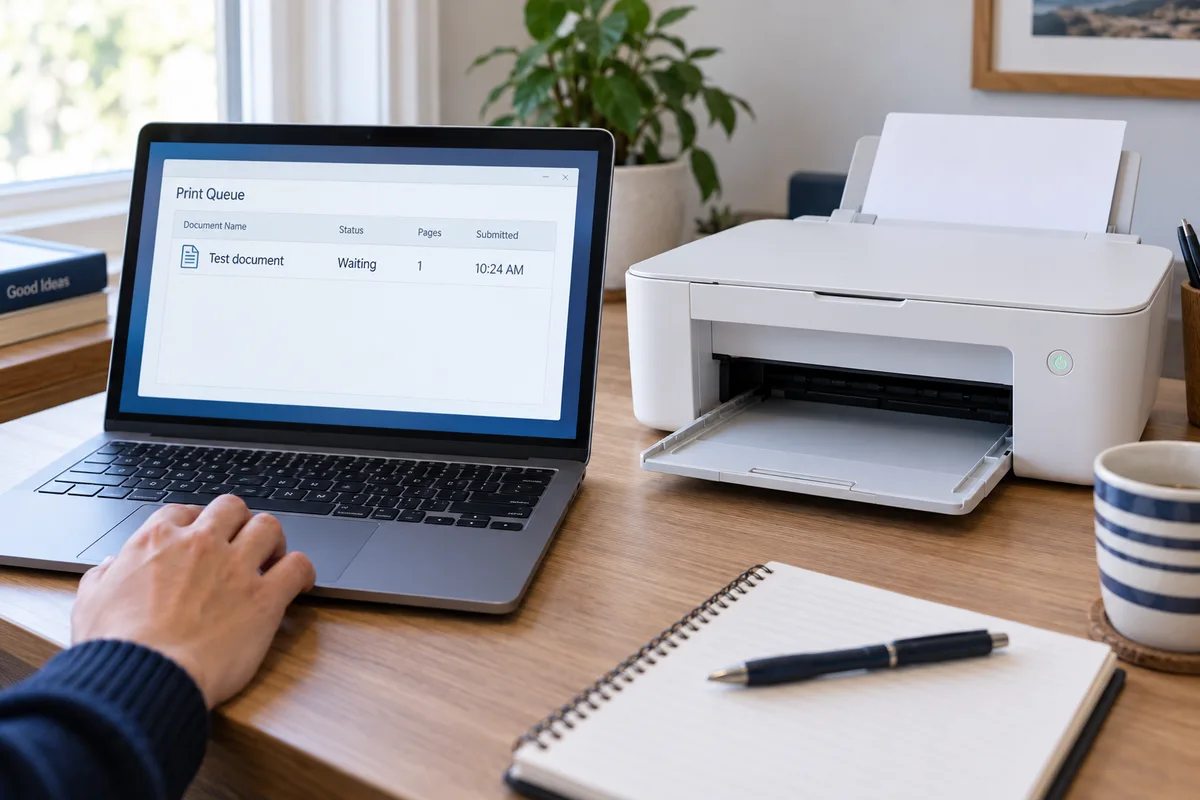
An example print queue shows a waiting test document beside a printer with an empty output tray.
Still waiting after another restart? We check the connection and print queue, then test a real page with you.

Tell us what it is doing.

You do not need the right technical words or the printer model before calling. These descriptions are enough to start.

Printer says offline
It is turned on, but the computer insists it is unavailable.
Nothing leaves the queue
One stuck job blocks everything behind it.
The computer cannot find it
The printer vanished after new Wi-Fi, a router change, or a new computer.
It prints but will not scan
The printer works in one direction while the scanner or scanning app refuses to cooperate.
Scan to computer stopped
The button, app, or destination that used to work is suddenly missing.
The new printer will not set up
The installation stalls, chooses the wrong device, or never finishes connecting.

Get the computer and printer talking again.

Many common printing and scanning failures are connection or software problems. We trace the whole path instead of repeatedly turning the printer off and back on.

  1. CHECK 1

    Connection

    Reconnect the printer or scanner to the computer and the correct Wi-Fi network.

  2. CHECK 2

    Setup

    Install or repair the printer and scanning software without leaving duplicate devices behind.

  3. CHECK 3

    Print queue

    Clear blocked jobs, restore the correct default printer, and test a clean print.

  4. CHECK 4

    Scanning

    Restore scan-to-computer or scan-to-email when the printer and account support it.

What a remote printer session can—and cannot—reach.

BrainRoad works on the computer side while you stay with the printer. You may need to load paper, press a button, read a message from its screen, or reconnect a cable.

See exactly how remote support works

Problems we can fix remotely

  • Offline and connection problems
  • Printer or scanner setup
  • Drivers and scanning apps
  • Stuck print queues
  • New Wi-Fi or a new computer

Needs hands-on repair

  • Broken rollers or moving parts
  • Leaking ink or toner
  • Cracked or damaged hardware
  • Electrical or power failure
  • Repeated mechanical paper jams

Printer and scanner questions

Can printer and scanner problems really be fixed remotely?
Many can. BrainRoad works on the computer, drivers, print queue, Wi-Fi connection, and scanning software while you watch. Someone needs to be near the printer to load paper, press buttons, or reconnect a cable when needed.
What if the printer has broken parts?
A remote session cannot repair cracked plastic, broken rollers, leaking ink, electrical failures, or a printer that will not power on. BrainRoad will explain when the problem needs a printer repair shop or when replacement is likely the better value.
Can you help if it prints but will not scan?
Yes. That usually points to a separate scanner driver, scanning app, network, firewall, or destination problem. Printing successfully does not always mean the scanning side is set up correctly.
What does printer or scanner help cost?
The diagnosis is free. A successful remote fix is $99 flat. You approve the price before work begins, and if the problem is not fixed, you do not pay.

Need to print or scan now?

Call and describe what the printer is doing. The diagnosis is free, a successful remote fix is $99 flat, and you do not pay if the problem is not fixed.